Cascading Style Sheets #
Notes from course #
-
Web fonts can be downloaded onto the user’s browser if your website requires them. This is done by defining the font in CSS, e.g. in the
<style>tag. The rule is specified as :@font-face { font-family: "Open Sans"; src: url("http://example.com/fonts/OpenSans-Regular-webfont.woff2") format("woff2"), url("http://example.com/fonts/OpenSans-Regular-webfont.woff") format("woff"); }This whole thing can be importing it as a style sheet using the
linktag within theheadelement. -
Along with fonts like that there are also “Generic fonts” which are present in all browsers. When specifying generic font names you don’t need quotes since they are CSS keywords. E.g. Helvetica.
-
Many user defined CSS classes are designed so that they can be assigned to different kinds of elements. E.g. “thick-green-background” and “silver-background” can be used with different kinds of elements to give the specified effect. P.S.
idbeing unique is not enforced by the browser :( When using the id as a specifier in CSS, that style has a higher priority for that element over the class style. -
All HTML elements are rectangles. Three style attributes that control sizes of this rectangle are : padding (space between element’s content and margin), margin (space between element border and other elements) and border.
-
Decreasing the margin (even to negative values) makes the element larger and increasing it makes the element smaller.
marginandpaddingcan be controlled for all 4 sides of the rectangle. They can also all be specified in one line (clockwise direction, starting fromtop). -
Other CSS selectors: An attribute selectors chooses elements for which
[attr=value]. The code snippet is the selector. -
Values for sizes can be specified in absolute (e.g. in, mm) or relative units (e.g. em which is relative to the font size within the element and px which is dependent on the screen the user has)
-
CSS properties are inherited by child elements. Conflicting styles in the child element will override that defined by the parent element. In case there are conflicting styles within the classes a particular element belongs to, the style for the class defined later in the style sheet overrides.
iddeclarations override class ones. Inline styles override all of them. Specifying!importanton an attribute means that it won’t be overriden by anything else. -
You can define CSS variables within one style and use them in styles of child classes, they are specified with a
--before the name e.g.--penguin-beak: orange;. That variable’s value can be accessed within other classes like this:background: var(--penguin-skin);. Ifvarcannot find the variable you can also specify a fallback value like this:background: var(--penguin-skin, black);.:rootis a pseudo selector matching the root element of the document. -
Media queries are a way to apply certain CSS styles only when particular conditions from the browser are met, their general format is:
@media media-type (media-feature-rule) {
  /* CSS rules go here */
}
The
media-type andpart is optional. You can also redeclare styles which will then override the previous styles. -
To apply multiple feature rules, you can do it like so:
@media (min-width: 1px) and (max-width: 2px) and (orientation: potrait) {} -
Having trouble deciding what screen sizes should be used? See where your layout breaks when you expand / shrink and use that. You could also just design for the common sizes like upto-600px, upto-900px, and so on.
-
The
box-shadowproperty in CSS can apply multiple shadows to elements. It can control, offsets, blur, spread and color of the shadows. -
The
text-transformcan change the capitalization of elements without modifying the HTML. It can be set tolowercase,capitalize, etc. -
Pseudo classes in CSS are extra keywords that you can add to selectors to modify specific states of the element.
a:hoverwill modify the style of theaelement during the state when the mouse is hovering over it. -
Relative positioning: All elements have a default place within the document, where each block style element is on a new line and inline elements such as
<span></span>are positioned in the same line itself. Setting thepositionasrelativemeans you want to change it’s position relative to it’s normal position. It is combined with the “offset” properties such astop,bottom,leftandrightwhich specify how much space you want to keep from the normal position in that direction. Other elements will be placed in their normal position regardless of where the relative element is. -
Absolute positioning: The element will be removed from the normal document flow and only it’s positional parent (the first parent that has the position parameter set, or body) will be aware of it. You do it by setting
position: absolute. By default it will remain in the same place it was. You can move it around wrt the parent element with offsets. It is now locked to the parent element’s positioning. -
Fixed positioning: The element is now locked to browser window, removed from the document flow and all other elements are unaware of it. By default it will still be in the same position as normal but this can be changed by using offsets. These elements will no longer move upon scrolling.
-
Floating elements: Setting
float: [left|right]will remove the element from the normal document flow and move it to the extreme left / right of the parent element. It’s commonly used with thewidthparameter which says how much width of the parent it should be occupying. -
Centering block elements : Set their
margintoauto. To convert an element to a block element. Set itsdisplayasblock. -
HSL : Hue (0-360) is a position on the color wheel. Saturation (0-100) is the amount of gray in a color. Lightness (0-100) is how much black or white there is in a color (50 is the default). E.g. green is
hsl(120, 100%, 50%). -
Instead of a single background color, you can also set a gradient, e.g.
linear-gradient(angle, color1, color2). You can also set the background to a picture by using url(“image location”); -
The
transformproperty is cool. You can perform actions on the element such asscale,skewX,skewY,rotateetc. and even multiple actions! You can make really complex shapes with CSS, a heart even! The pseduo classes::beforeand::afteradd children to element, one at the first and one at the last. -
ANIMATIONS! You can set a particular animation to an element with
animation-nameand set for how long that animation should play withanimation-duration. That animation should be defined as@keyframes aniname { /* what happens in the animation */ }. The keynote has multiple parts telling what should happen at x% time of the animation. Here’s a sample one:#anim { animation-name: colorful; animation-duration: 3s; } @keyframes colorful { 0% { background-color: blue; } 100% { background-color: yellow; } } -
If no 100% is specified, it will be the same as 0%. You can keep an element at the 100% state after the animation finishes by setting this property:
animation-fill-mode: forwards;. Setanimation-iteration-count: 3;to infinite to keep it running forever.
CSS Flexbox #
- You can turn an element into a flex container by adding the
display: flexproperty to its style. Whether they are aligned in a row or column and in which direction is defined byflex-directionwhich can be(row|column)[-reverse]. The default value is “row”. - If you make an element a flex container the children are the flex-items. You can set their location using
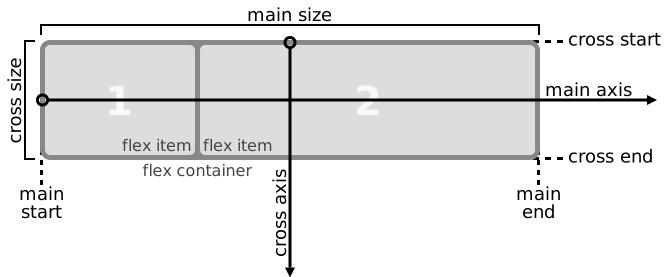
justify-contentwhich can be set to values such as “center”, “space-evenly”, “flex-start”, “flex-end”, “stretch” etc. This is a nice diagram about flex containers. justify-contentmoves the flex items along the main axis (check that diagram from the previous point) and aligns them. The other method of aligning is along the cross axis, which can be achieved withalign-itemswhose default value isstretchas it, by default, stretches elements along the cross axis.- You can also align elements individually by specifying the value for the property
align-selfwhich overridesalign-items. - By default, all the flex items in a flex container will be placed in a single row/column. You can change this by using the
flex-wrapproperty and setting it towrapwhere elements can be placed in multiple rows/columns if they don’t fit. - To move around individual flex-items in a container, set their margins. E.g. when an element has
margin-left: autoin a row layout, it will be pushed to theflex-end. - You can change how flex-items change as the container’s shape changes. This can be done by setting the
flexproperty in the flex-items. Theflexproperty is a shorthand forflex-grow flex-shrink flex-basis:flex-grow: A positive value indicates the proportion of free space left in the flex container that should be allocated to this item. By default it is 0 which indicates that items will not grow.flex-shrink: A positive value indicates how much this item should shrink wrt other items so they all fit in the flex container. By default it is 1 which indicates they will all shrink equally to fit.flex-basis: The size of that element along the main axis (for flex-direction: row it will set width). By default it isautowhich means the size of that item will be that the user set for it (e.g. width: 100px) else it will be the size of the content within it.
- A Flexbox has source order independence. That means you can set the order for items in a different way from what it was in the HTML. This is done by setting
orderin flex items. Negative value items appear first, positive last. Zero is the default value. flex-flowis a shorthand for (flex-direction flex-wrap) which is by default set torow nowrap.- When your flexbox spans multiple rows you can use
align-contentto align those rows. Values arecenter flex-start flex-endetc.align-itemsaligns the content within those rows.
CSS Grid #
There’s also a good course to learn about it - https://cssgrid.io/ .
- Only setting
display: griddoesn’t affect the elements. You can set the number of grid columns and the size of each column like this:grid-template-columns: 50px 50px;. There’s also the complementarygrid-template-rows. You can also use “auto” instead of units. There’s a new unitfrwhich you use to set items to split the space among themselves fractionally. There’s also the shorthandgrid-templatewhose value is in the format:grid-template-rows / grid-template-columns. - Usually, the items in a container’s row or column are aligned so there’s no space between them. This space can be added with
grid-column-gaporgrid-row-gapor both at once withgrid-gap. (Modern CSS prefers that you use just “gap”, “row-gap”, and “column-gap”) - CSS Grid has row lines and column lines which are around each row and column. They can be named (seems weird to me).
- You can also set how many rows / columns each item will take by adding the
grid-column: start-line-num / end-line-numproperty (or the “row” alternative) to the item. end-col (or end-row) is exclusive.start-colandend-colcan also be set to negative values to count backwards from the end . You can also use another format:grid-column: start-col / span {number of columns to span}; - All grid items are placed within “cells” which actually make up the grid container. By default, the item stretches to fit the cell but you can change that by using
justify-selfandalign-selfon the item. They accept values like “center”, “start”, “end” etc. You can also do this for all items at the container level by usingjustify-itemsandalign-itemsto set the value to all items. - You can move the content within a grid (i.e. the cells, since they don’t necessarily occupy 100% width and 100% height of the grid) with
justify-contentfor the main axis andalign-contentfor the cross axis. - Cells need not be of the same size along the main axis since the default minimum size is to fit content. On the cross axis, if no size is specified, all cells will be of the same size (fit-content by default).
- A grid will be split into cells, you can name those cells and ones with the same name make up an “area” that is set using
grid-template-areasand you can make items occupy areas by telling them to occupy the area of thegrid-areaproperty. - Media queries along with grid areas can make for a responsive website. You can change the layout by changing the areas layout when some viewport property changes.
- Sometimes you may not know how many columns you want and may want the browser to add or remove columns as the screen width changes. This can be acheived with
repeat(auto-fit, {width of each col}). The width of a col cannot be some fr since it will occupy full width then. If you do want the width to be somewhat responsive you can set the width to beminmax(a, b)whereaandbcan be values like100px,1fr, etc. The min value can’t be anfrvalue. You can useauto-fillinstead ofauto-fitif you don’t want your cells to expand to take up extra space. - The
minfunction is frequently used withminmaxto create responsive layouts that can avoid media queries. This is one common snippet :grid-template-columns: repeat(auto-fill, minmax(min(100%, 250px), 1fr));. - Since the number of columns can vary, the number of rows may also vary, which means that defining row heights for each row isn’t possible. Instead, you can set the height for all rows by using
grid-auto-rows: {some height}. - CSS Grid is AWESOME. When you want to specify how many rows or cells an item should take without statically specifying where it should start (like this
grid-column: 4 / -1orgrid-row: -2 / span 1) you can specify just the span and let CSS place it in its correct place withgrid-[column|row]: auto / span {how many ever you want}. As a shorthand you can also specify it likegrid-[column|row]: span {value}. - If an item just needs to be one column (or row) wide, you can set
grid-[column|row]: {column or row line number}. - There’s also a short-hand
grid-areawhich can be set togrid-row-start / grid-column-start / grid-row-end / grid-column-endwhere any of the values can be positive, negative, or a span + value. - Sometimes, when some cells have different sizes than others, there might be empty spaces in the grid which can’t be filled if the HTML flow is followed. Since CSS Grid has source order independence you can ask it to fill it optimally to avoid spaces using a “dense packing algorithm” with this property:
grid-auto-flowwhich, by default, is set torowbut you can change it todense.
When to choose Grid vs Flexbox #
More CSS stuff (since the language keeps improving):